Once DC updates the consolidated file status as 'Unacceptable' under QC remarks, CS can proceed to authorize the refund as below once an approval has been given by TL.
QC Rejected/Unacceptable = Defective item received or if item was lost.
 |
|
Work Instructions
|
Magento/Zendesk
|
|
Step 1:
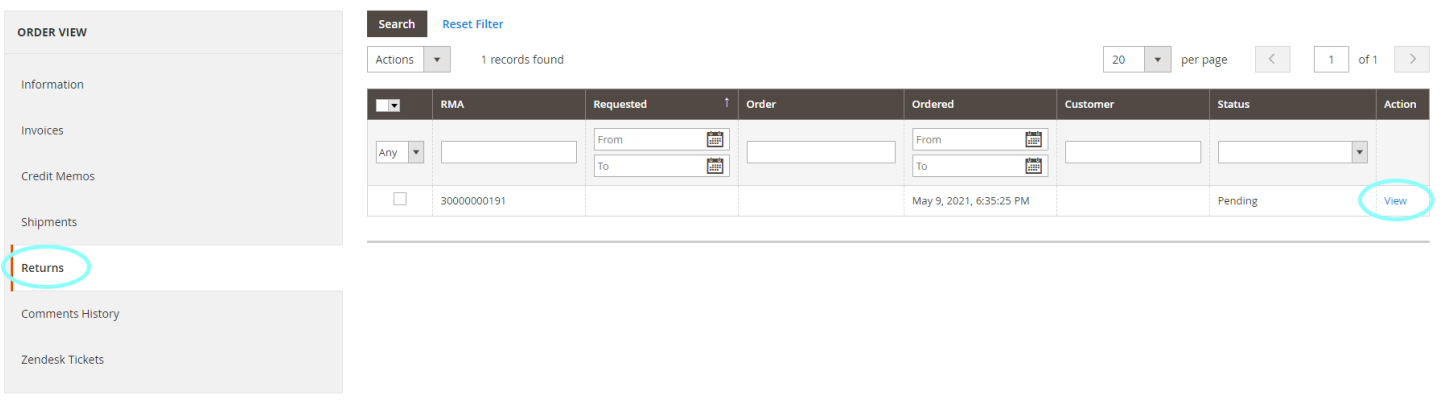
1. In the Order ID page, click 'Returns' under order view.
2. Select 'view' on the RMA.
3. In the RMA page, click 'Return Items' under Return Information.
|
|
|
Step 2: Select the correct product and fill in the fields as below:
- Returned = Fill in the Quantity
- Resolution = Do not change. Retain as 'Refund'
- Status = Select 'Return Received'
- Tick Notify Customer by email.
Click 'SAVE & CONTINUE EDIT'
|

|
|
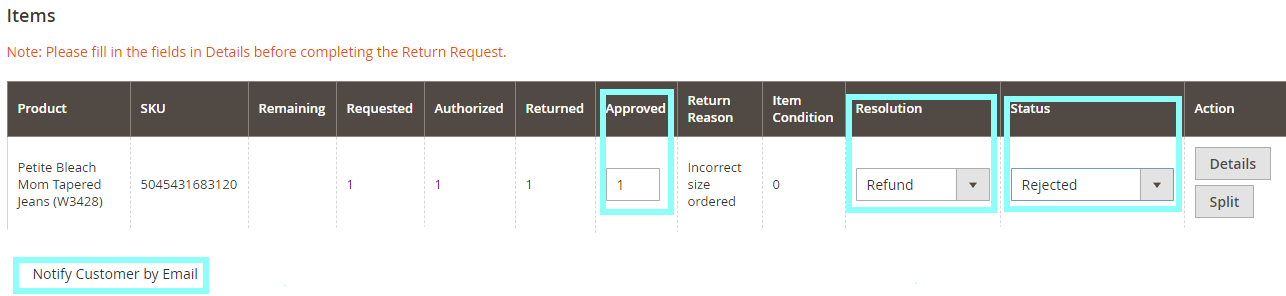
Step 3: If the QC is rejected, Ops team will advice on the next course of action and will provide an approval to proceed with refund.
Select the correct product and fill in the fields as below:
- Approved = Fill in the Quantity
- Resolution = Do not change. Retain as 'Refund'
- Status = Select 'Rejected'
- Untick Notify Customer by email
|
|
|
Step 4: Under the same RMA page, click on 'Details' and fill in the following attributes according to the different return scenario and click 'ok'.
- SKU condition = Select the condition based on the remarks by DC
- Remarks
- Write off
- Refunded items
- Refund shipping
Click 'SAVE & CONTINUE EDIT'
|


| Returns Scenario |
Remarks |
Notify Customer by Email |
Write Off |
Refunded Items |
Refund Shipping |
| Non-returnable items. Not allowed to return |
Non-returnable products |
- |
 |
|
|
| Defective item. Refund without returning item |
Not required to return - defective |
|
 |
|
/ |
| Wrong/missing item received, refund customer |
Wrong item - refund will be processed |
|
|
|
/ |
| Wrong/missing item received, no refund |
Wrong item - no refund will be processed |
|
|
|
|
| Failed QC, refund customer |
Failed QC - refund will be processed |
|
|
|
/ |
| Failed QC, no refund |
Failed QC- no refund will be processed |
|
|
|
|
|
|
Step 5: Update the RMA comment text.
1. In the RMA page, click 'General Information' under Returns Information
2. Fill in the RMA comment in the 'RMA History Comment Text' field
RMA History Comment
Zendesk ticket#:
Reason for return: (detailed specific reason.
Return quantity to stock: (Yes/No)
Reason of rejection: (defective/wrong item/missing quantity/lost parcel)
Refund: (Yes/No)
Remark: (any additional comments)
|
 |
|
Step 6: Inform Finance team on the refund details through 'side conversations' on Zendesk.
|
|
Step 7: Email customer the refund confirmation and click 'Submit as Solved'
*Refund amount = Sum up the raw total of returned item(s)
|
Macro for email response
Return/Refund::Refunded::Normal
|
|

Comments
0 comments
Article is closed for comments.