Platform: Shopify, Ezy2ship, WMS, Zendesk
Return method: drop-off at POPstation, store return
| No. |
Platform |
Action |
-
|
Shopify |
|
| 2. |
Shopify |
- Any pending submitted return request will appear in Home page
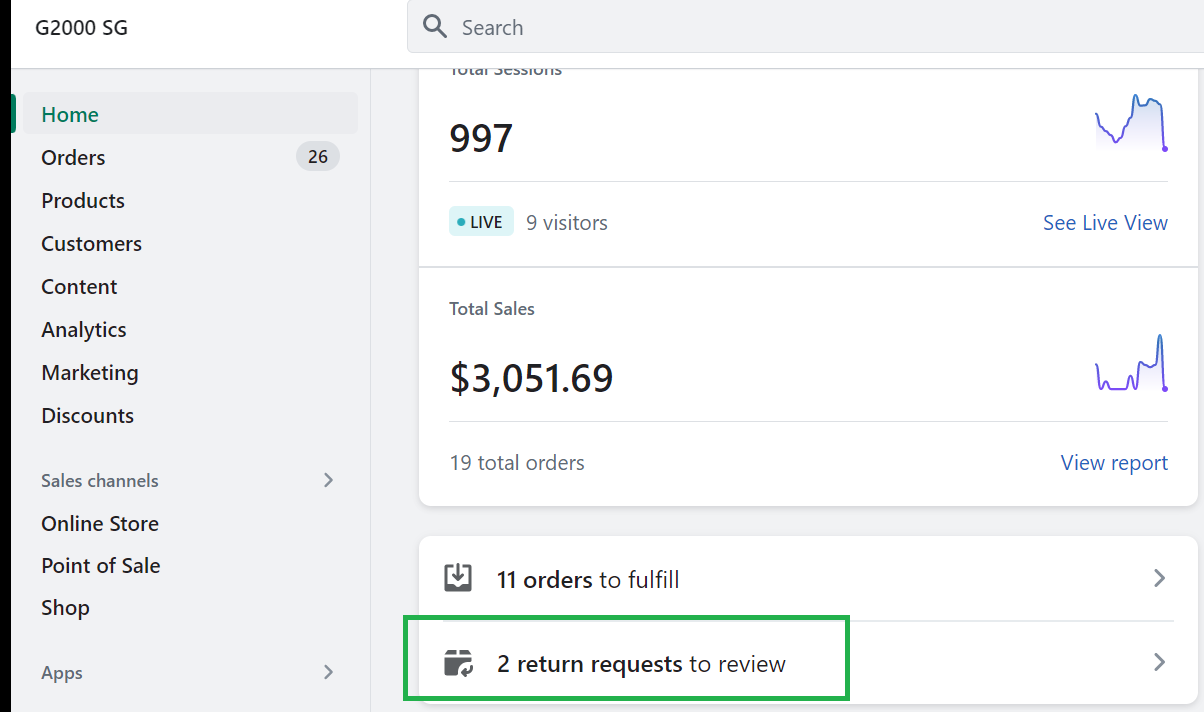
- Click Approve and take down the return request ID (typically starts with order Id and ends with R1 or R2, depending on the number of return request customer raised for the particular order)
|
| 3. |
Zendesk |
- Check for return methods. Use macro Return/Refund:: Return Received:: Shopify
|
| 4. |
Ezy2ship (drop-off at POPstation)
*if customer replied with return methods
** if no reply refer to:
|
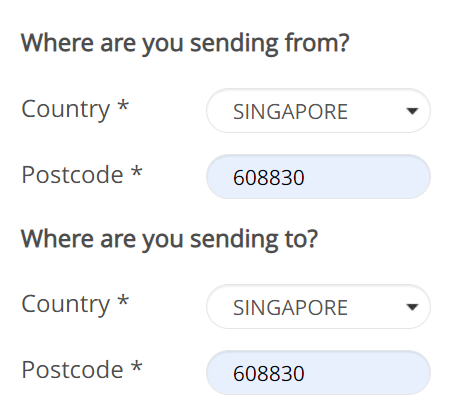
- In "Create Shipment" page > Enter the country and Postcode:608830 for both sending from and sending to fields
- Type of shipment: Parcel/ Small Packet
- Total declared value: SGD 15
- Under Measurements; Weight: 0.2kg, Length: 30cm, Width: 20cm, Height: 6cm > Click Next

- Select service name: Speedpost ezyReturn > Untick Enhance Liability > Click Next
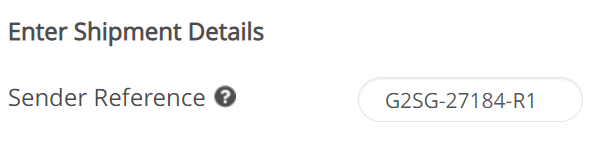
- Sender Reference: Enter return order ID
- Item Description: Clothes, Declared Value: 15, Item Weight: 0.2kg > Click Next
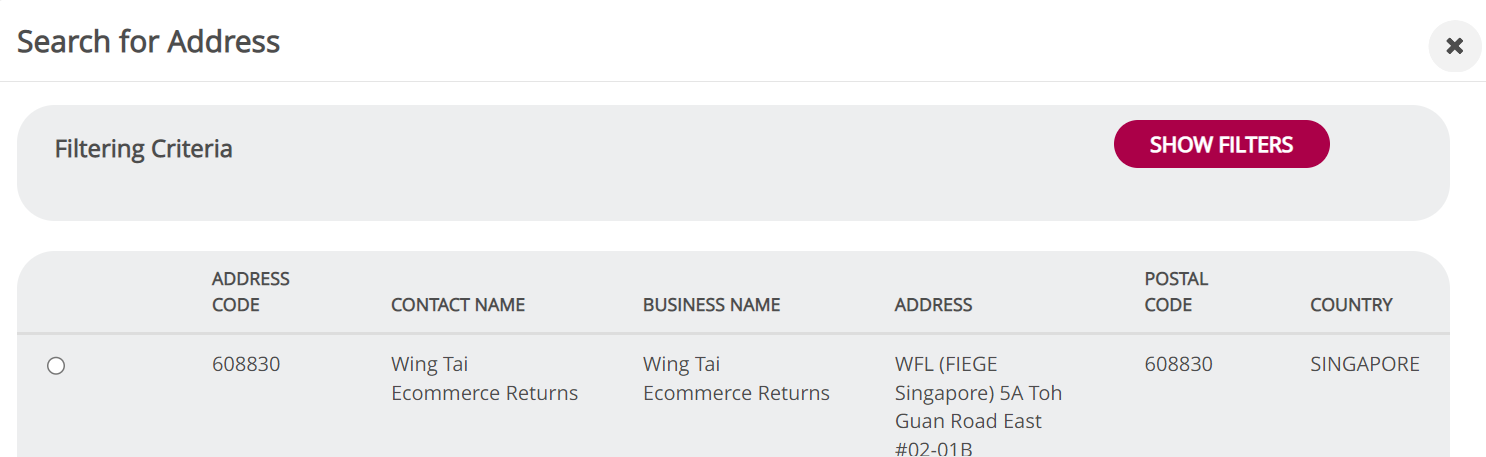
- Sender Details > Search from Address Book. Repeat the same step for Recipient (Send to) Details
- Return Instructions (in case of non-delivery): Return to Origin
- Image of shipping label will be generated > Click Assign Shipment
- Under My Shipment Records page, ensure the correct shipping label is selected > Assignment of shipment: Drop off at POPStation > Select any of the drop off points > Click Assign Shipment
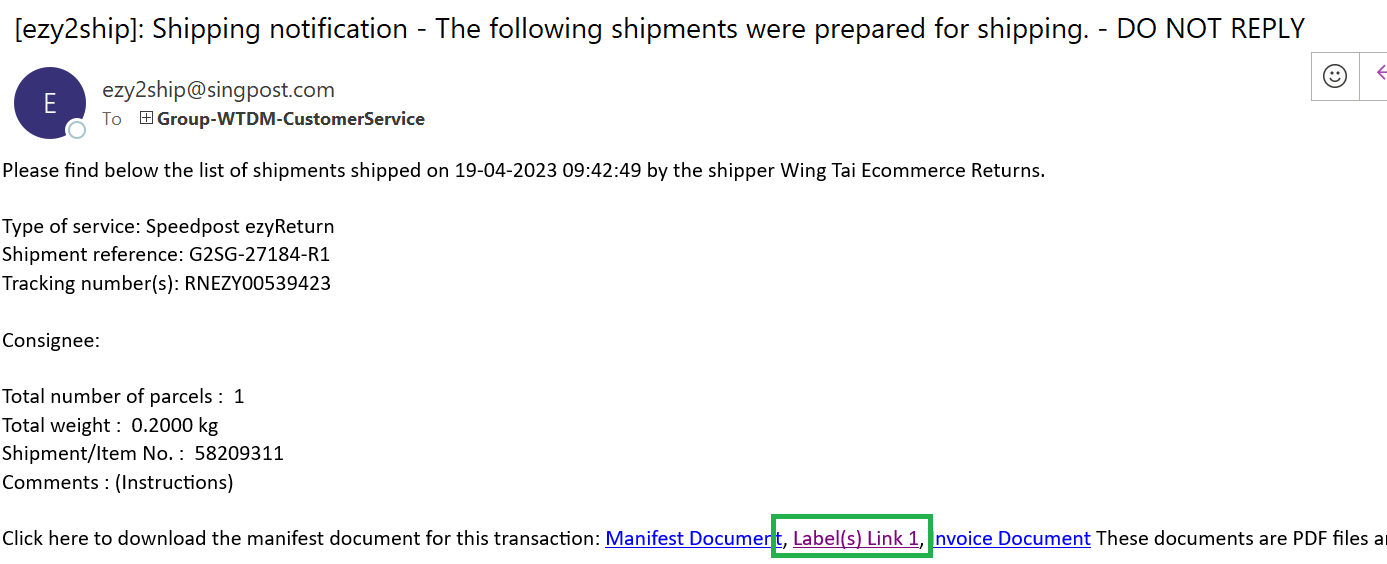
- Close the Print invoice window > Copy hyperlink Label(s) Link 1 in outlook email sent by ezy2ship
|
| 5. |
Shopify |
- In order return request page, click "Approve"
- POPstation drop-off: Click "add a return label URL" and paste the label link url
- Add the tracking number and pick shipping carrier
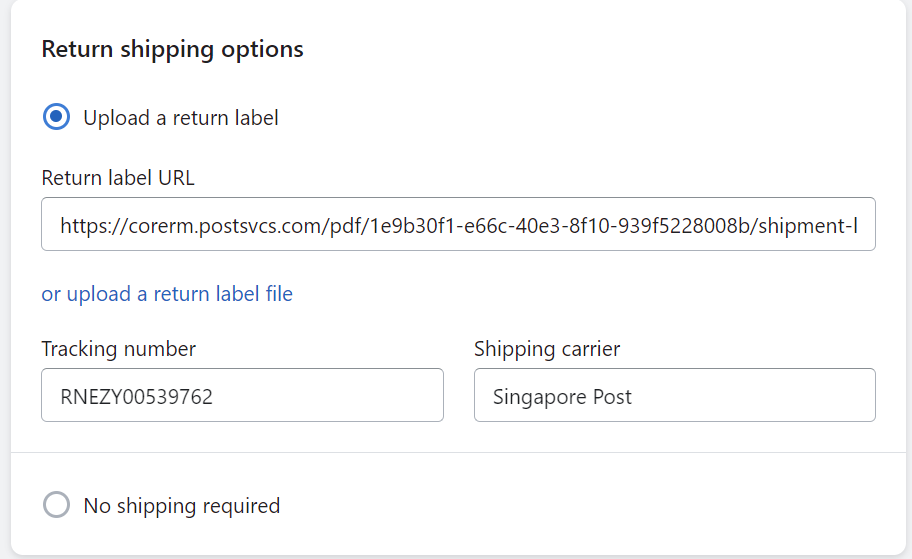
- Click "Create Return" to finalize
- Store return: Click No shipping required
|
| 6. |
Online Return Tracker |
- Update return tracker with all the details
- 1 row , 1 SKU
- Only fill up the details under the blue column
|
| 7. |
Zendesk |
- For store return, macro: Return/Refund> Authorized> Store Return
|
For info on refund process, click here.

Comments
0 comments
Article is closed for comments.